Showing posts with label Visual Studio 2008. Show all posts

Sunday, April 25, 2010

XML Parsing and SOAP messages

For a recent project, I needed to create a Web Services Conversation Language (WSCL) document (actually, four of these) and then be able to use another Web Service acting as a conversation handler to parse this XML and verify the protocols contained in the WSCL doc. This proved to be a challenge and reminded me that I need to better learn XML parsing in Web Services.

When a Web Service is created in Visual Studio, the service can be launched in a browser window. This page will show you the service available as well as a link to the WSDL document, and comments on the namespace if it is set to the default URL of tempuri.org. The screenshot below shows an example of this page.


Clicking on a Service name will allow you test the functionality of the service. Here is where an important note is annotated. When testing the operation directly, the parameters used are sent using HTTP POST. However, when accessing the Web Service through another application/service, the parameters are passed using SOAP messages by default.


So why is this important you might ask? Something gets lost in translation with the differences between HTTP POST and SOAP messages. When attempting read an attribute from an XML element, one can use the XMLReader.GetAttribute() function. This function is overloaded to allow for example: an int parameter (the index value of the attribute) or a string value of the attribute's XName. So, when parsing an XML document, one way to do this (using Visual Studio 2008, C#) is with something similar to the following:

using (XmlReader reader = XmlReader.Create(url))
{
reader.Read();
reader.ReadToFollowing("DestinationInteraction");
reader.MoveToFirstAttribute();
StartOp = reader.GetAttribute("href");
reader.Close();
}

This block of code will create an XML reader object (reader) and will then move to first Element with a name value of "DestinationInteraction." The reader is then moved to the first attribute of the Element and then assigns to (string)StartOp the value of the "href" attribute. An example of the portion of the WSCL document that this is reading is:

Notice that this Element has no values, only an attribute of "href" that has the value "OPName." And this is where the fun begins.

Parsing the value of Elements in an XML document is generally very easy. A developer can code such that only the required Element(s) is accessed (reducing overhead), or can parse the entire document, storing needed values for the application. It's the parsing of attributes, specifically using an "int" as the parameter that presents a problem.

The bottom line is this:
When using HTTP POST the XMLReader.GetAttribute(int i) will work properly. However, when attempting to use the int parameter in a SOAP message, this failed for me every time, with either an out-of-bounds error message (attributes can be accessed like an array [0...n]) or an invalid parameter error message. Needless to say that this was very frustrating for me, especially since I spent a LOT of time on this only to realize that the easy answer was to use the string parameter.

Using XMLReader.GetAttribute(string s) function allows the operation to execute properly (as long as s is a valid XName of the attribute) in both HTTP POST actions and with SOAP messages.

Unfortunately, this was another thing on which I spent a LOT of time that I really didn't have. I was not able to determine the cause of the problem, although it is obviously something in the way the SOAP messages are being handled. I assume it's the way that the client side is parsing the SOAP message and believe that although the SOAP message passes the int parameter as an int, the client-side is most likely parsing the int and casting it to a string. I have finals this week and will be focused on that in my free time. However, as SOON as my finals are over, I plan to spend some time on this one as I really want to know what the failure mechanism was with this operation.

HTTP 404.8 ERROR

While working on a recent project involving web services, I started to get HTTP 404.8 errors, which I will discuss in a minute. The odd thing about this error is that it "just started." The project I was working on did not involve any "new" technology that I haven't already used on this box.
My current environment consists of:
- Windows 7 Pro
- Visual Studio 2008 Pro
- IIS 7.5

The HTTP 404.8 ERROR:
- Hidden Namespace. The requested URL is denied becuase the directory is hidden.
What does this mean???

This error is apparently returned when a directory is listed in the RequestFiltering/HiddenSegments of the applicationHost.config file for IIS. The fix for this is partially found at (http://support.microsoft.com/kb/942047). I say partially becuase it is still up to the user to determine which directory is the problem. However, I will still post the fix instructions here, with the caveat that this "might" not be the solution to everyone else's problem with this error.

Steps:
- Open Notepad as an Administrator (right click on Notepad, select "Run as administrator")
- Open the file named "%windir%\System32\inetsrv\config\applicationHost.config.
- Find the element and then the child tag
- Here's the annoying part...at least for me.
- In the section, find the directory that is causing you the problem. For me, it was the "App_Code" directory that had somehow become a problem.

The unanswered question here is: "What caused this error in the first place?" What was I doing when the error was returned? I was trying to use a Web Service instance in a project I was working on. This Web Service instance has been used in multiple projects and this 404.8 had never been returned before. In fact, when I recieved this error, I attemped to see if other Web Services I had recently created returned the same error when I tried to access them through my main application; the same error was in fact returned by all Web Services when accessed through the application, but not when I used the "View in browser" option for each service in VS2008. As frustrating as this was, I was under a serious time crunch to get the application working, and as such I have still not had time to properly research why this error started happening.

I do strongly believe the error to have been caused by some update to either Windows 7, IIS 7.5, or (even less likely) Visual Studio 2008. The update had to have been applied since the middle of February, as that is the last known time that the Web Service in question was successfully used. I may post a question to the forums on these, but it depends on time. Maybe somebody reading this can tell me why this error just "magically appeared" one day.

Friday, February 19, 2010

Version Control and Visual Studio 2008

Anyone who programs and creates projects larger than the standard HelloWorld application has probably experienced a day like: they really wish they wouldn't have adjust those last 100 lines of code and forgot where and why in the process. As most know, a Version Control System (VCS), can greatly help a programmer to track changes, whether it is in the development phase or in maintenance. In Visual Studio 2008, there are a couple of ways to add a VCS: through the VS SDK or by grabbing a good release already available. Here I am going to quickly describe how to get TortoiseHG/Mercurial working with Visual Studio 2008 Professional. I have done this on a box running Windows 7.

TortoiseHG (w/ Mercurial) is an open source, and excellent, VCS. The TortoiseHG portion is a GUI interface that is linked to the right-click menu on Windows during install. Mercurial is the command line portion. Mercurial repositories can be converterd to Subversion repositorites, and vice versa, are supported in multiple IDE's such as Eclipse and NetBeans, and is VERY easy to use. I will put a mini listing of common Mercurial commands at the end of this post.

Without further ado, let's get started!

First of all, you need to download to pieces of software:

VisualHG:
- http://visualhg.codeplex.com/


TortoiseHG:
- http://tortoisehg.bitbucket.org/


After downloading these items, install TortoiseHG first (do not restart after install, unless you REALLY, REALLY, want to) :-)


Next, install VisualHG. This is the piece that integrates with VS 2008. After this is installed, NOW restart your computer.


Once your computer has come back up and you have logged in with your complex password, it is time to go through the "grueling" (it really shouldn't take very long to do this) steps of adding the VCS to your VS 2008.


Open Open Visual Studio 2008.
->Tools->Options
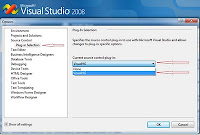
- Select "Show all settings" (Screenshot below)


Select "Source Control" in the right-hand menu
- Select "Plug-in Selection"
Select drop down in left side
- Select VisualHG

Before creating or using your repository, depending on how you installed, you may need to configure some settings, such as user ID. Configuration and Operation actions in TortoiseHG can be easily accessed from the right-hand GUI options (see screenshot below), or from the command line (again, this is really the Mercurial piece of the software). The command line options will open the respective GUI interface in most instances. I will be using the command line options in this manner.


If you used the most recent release, your username was created during install. If you don't need to create any other configurations, such as web shares, proxy, etc, skip to number 2.

1. To initially configure TortoiseHG:
- hgtk userconfig

2. Once this is done, a local repository needs to be created. This has to be created using TortoiseHG (VisualHG cannot create repositories.
- hgtk init [destination]
- The GUI will open a smaller window. In this window you can confirm or change the reposity location, allow for special files such as .hgignore, and make the repository compatible with older versions of Mercurial.
- I recommend using your current Visual Studio 2008 Projects folder becuase after creating the repository, a commit can be performed, causing everything to be controlled/monitored from that point forward.
- Once this repository has been created, the folder Icon will change to show a checkmark inside of a small green cirle. Initially, if you browse deeper into this folder, you will see the same checkmark in a green cirle in files and folders.

3. To test the version control system, make a simple change to any project file, and then navigate to that file.
- an exclamation mark should be visible on the lowest level file that you changed (and any resource files).

That's it. You should now have a local Source Code Version Control System for you Visual Studio 2008. There are ways to create your own using the VS2008 SDK, but I am not a person with the time to do so right now.

For general information on Mercurial command line options:

$ hg help or $ hg help [command] for more specific help

Generally, the Mercurial command line is intuitive for those who have dealt with VCS's before, and easy to learn for those who have not. Common 'keywords' for actions are the majority of the commands, with paramaters usually limited to comments, username, password, URL, etc. Some example commands:


  • $ hg pull
    • pulls from a repository

  • $ hg commit
    • commits changes to the current working directory/repository

  • $ hg push
    • pushes new files up to a repository

  • $ hg status
    • displays a status of the current repository (what changed)

  • $ hg merge
    • merge changes accross branch

  • $ hg resolve
    • attempt to re-merge unresolved files

  • $ hg heads
    • show branch heads


An excellent cheat sheet that will get you started with Mercurial commands is at the following link:
http://mercurial.selenic.com/wiki/QuickReferenceCardsAndCheatSheets?action=AttachFile&do=get&target=Mercurial-Cheatsheet-Adrian-v1.0.pdf